
4.1. Distributor: Create a Child Serial Number, Edit, and Share
This guide provides step-by-step instructions on how to create a child serial number. It explains how to generate the serial number, edit it, and share it with the customer.
Click "Create Serials"

Click "Add Master Roll"

Enter the serial number of the roll.
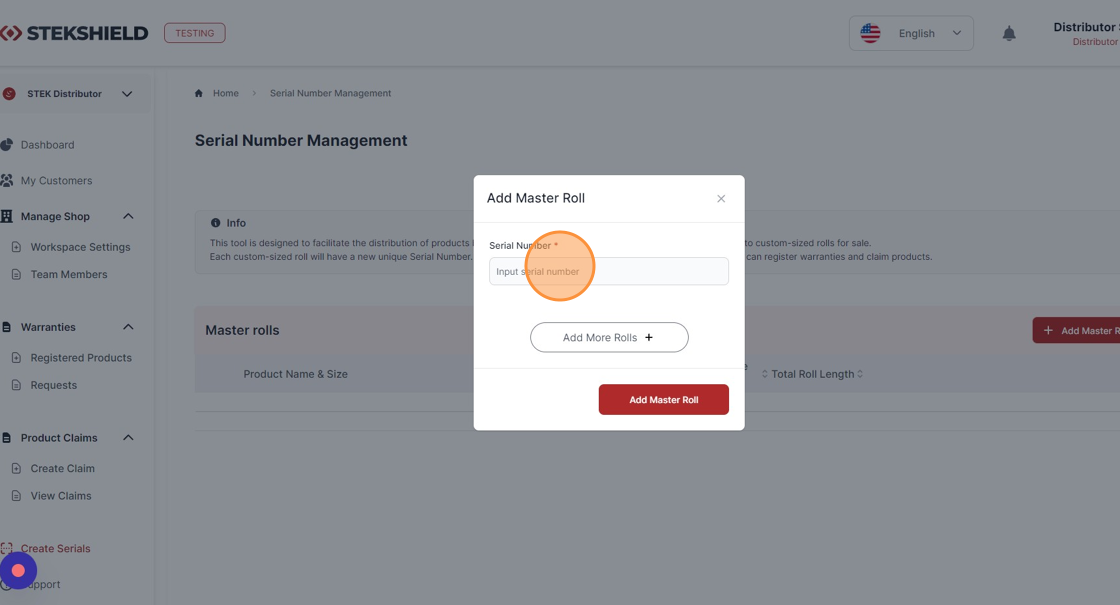
Click "Add Master Roll"

You have added a master roll DYNOgreen [ 1.52 M * 15 M ]. Click on it to open the additional menu.
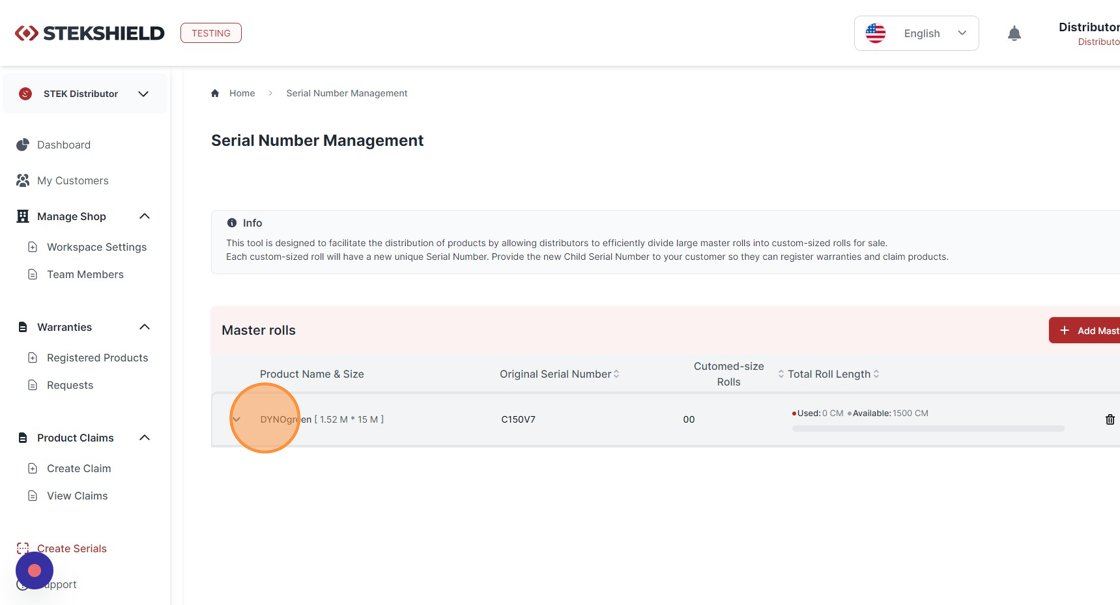
Click "Create Serial"

Choose from the "Receiving Client" dropdown list the customer (installation shop) to whom you are going to sell a few meters from this roll.

Enter the required length.
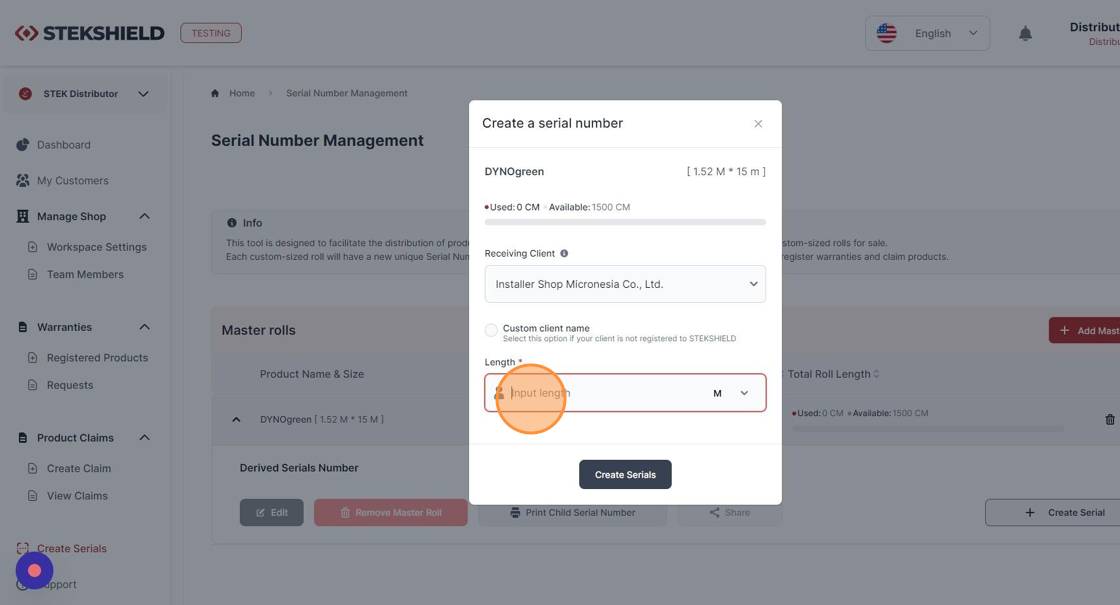
Click "Create Serials".

The child serial number has been created.

Select the child serial number by clicking on it.

Click "Edit"
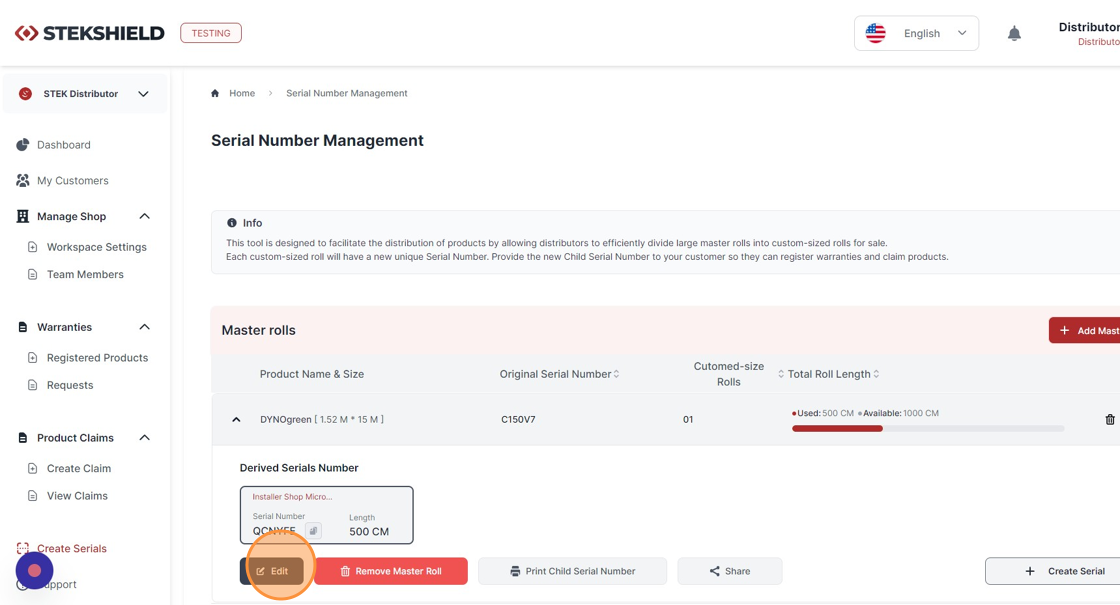
Change the length as needed.

Click "Save Length"

The length has been changed from 500 CM to 700 CM.
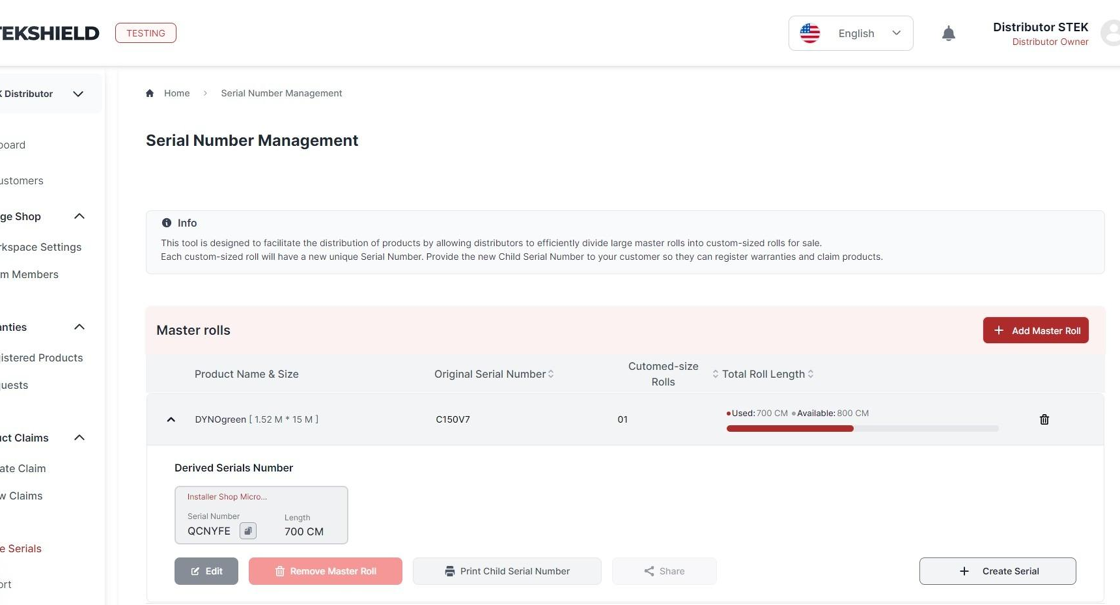
Select the child serial number by clicking on it.

Click "Share".

Tick the box to choose the child serial number to be shared.

Click "Send Email".

Once shared with the customer (installation shop), the child serial number will have a tag "Shared".
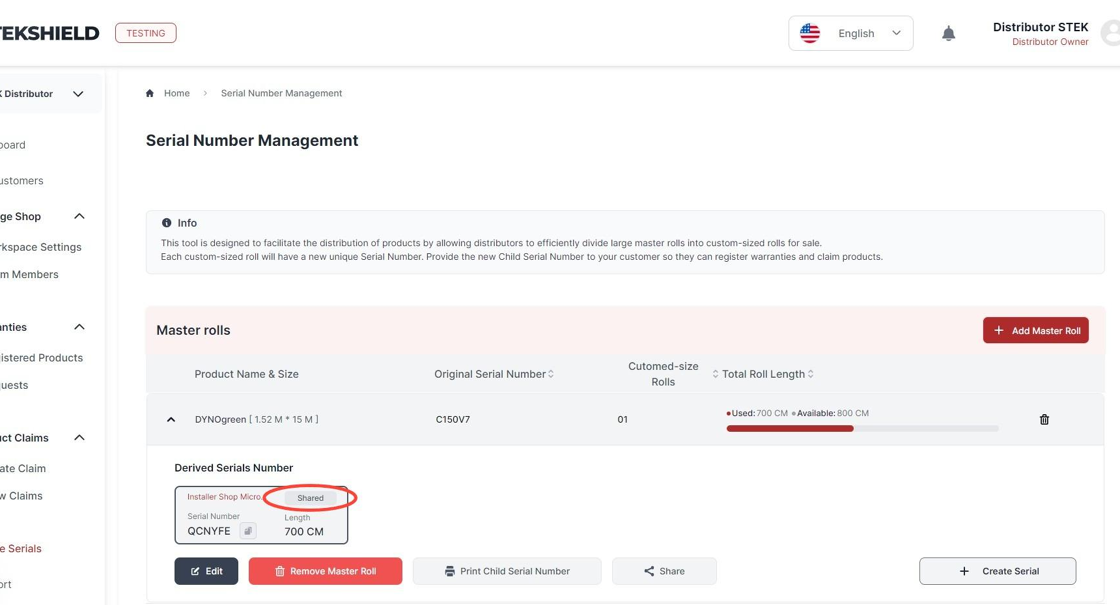
An alternative way to share the child serial number with the customer (installation shop) is to copy it by clicking this icon and send it to the customer manually.


Also, you can print the child serial number. Click "Print Child Serial Number".

Tick the box.

Click "Save as PDF" or "Print Child Serial Number".
Was this article helpful?
That’s Great!
Thank you for your feedback
Sorry! We couldn't be helpful
Thank you for your feedback
Feedback sent
We appreciate your effort and will try to fix the article