
6.2. Distributor: Create a Claim over a product before Installation
This guide provides step-by-step instructions on how to submit and track a product claim for approval. By following these steps, users can easily register a claim, provide all necessary details, and even add photos to support their claim. The guide also explains how to view and track the progress of the claim, and users will receive a confirmation once their claim is approved by STEK Headquarters. This guide is essential for anyone who needs to submit a product claim and wants a smooth and efficient process.
Under Product Claims in the side bar menu, click "Register Claim".

Insert the Serial Number or LOT Number of the product you wish to submit a claim about.

Click "Retrieve Info" to confirm the Serial Number.

Fill in the details of the claimed area.

Specify the problem area.

Specify the issue type.
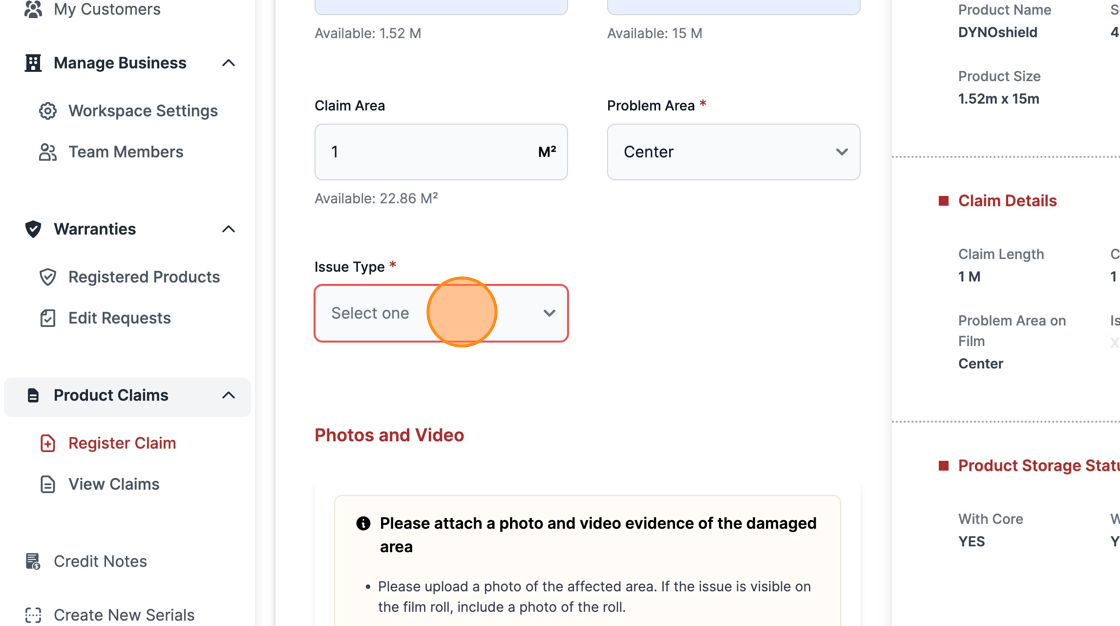
Add photos that will help STEK Headquarters to provide a better solution to the claimed product.

Please fill in the details below as thoroughly as possible in the comments field.

Click "Submit" to confirm all the information available.

Go back to View Claims page under Product Claims in the side bar menu. And Click "View claim" on the desired claim card.

Click "Received"

Click here.

Click "View Claims" to access all of the recent claims.

If STEK Headquarters approves your claim request, you should see a confirmation within the claim card.
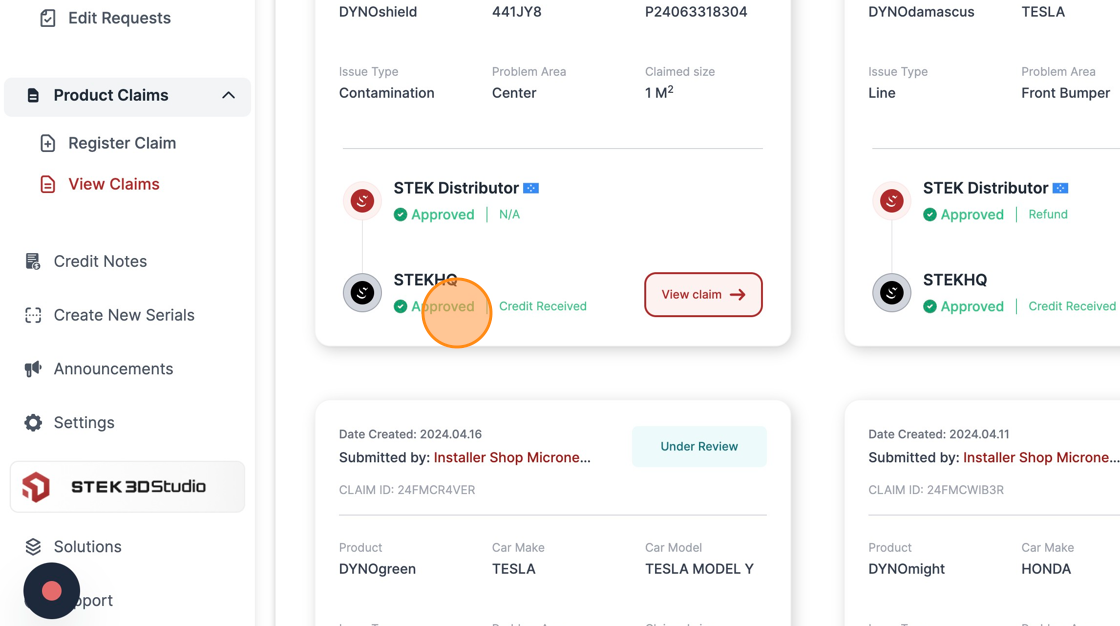
To view more details about the claim and the resolution provided from STEK Headquarters, click "View Claim".

You should see a confirmation from the HQ also in the claim details page.

Was this article helpful?
That’s Great!
Thank you for your feedback
Sorry! We couldn't be helpful
Thank you for your feedback
Feedback sent
We appreciate your effort and will try to fix the article