
5.1. Installer: Registering a Claim
This guide provides step-by-step instructions on how to register a claim for a warranty. It explains how to submit a claim through the "View My Warranties" page or the "Register Claim" page, how to input the necessary information, and how to choose a solution from a local distributor. It also emphasizes the importance of including images to help the distributor make an informed decision. Following these steps will ensure that the claim is submitted correctly.
Under Warranties, click "View My Warranties".

Select the desired warranty to submit the claim and click this icon.

Click "Create Claim".

Select the desired product for registering a claim.

On the left side bar menu. Click "Register Claim".

Input the desired Warranty Number. It's also possible to copy from the the "View my Warranties" page.

Input the claimed area information, with all the additional details requested.

Choose a desired solution from your local distributor.
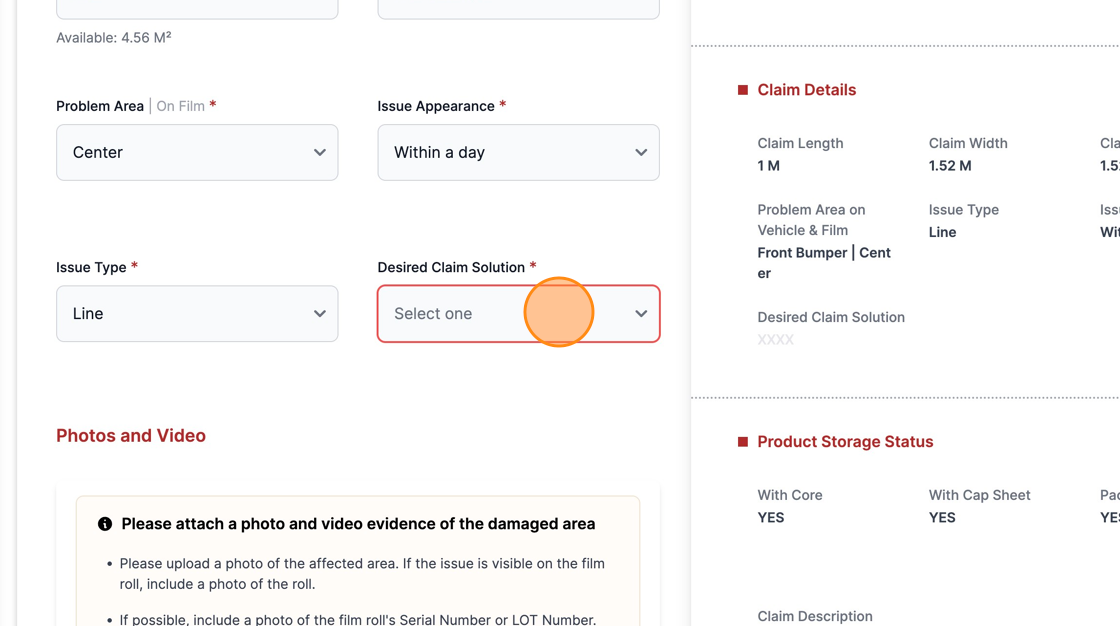
Insert as many images as possible to help your local distributor to take the best decision.

Please fill in the details below as thoroughly as possible.

Click "Submit" to save all information provided.

On the left side bar menu. Click "View My Claims"

Click the button "View claim".
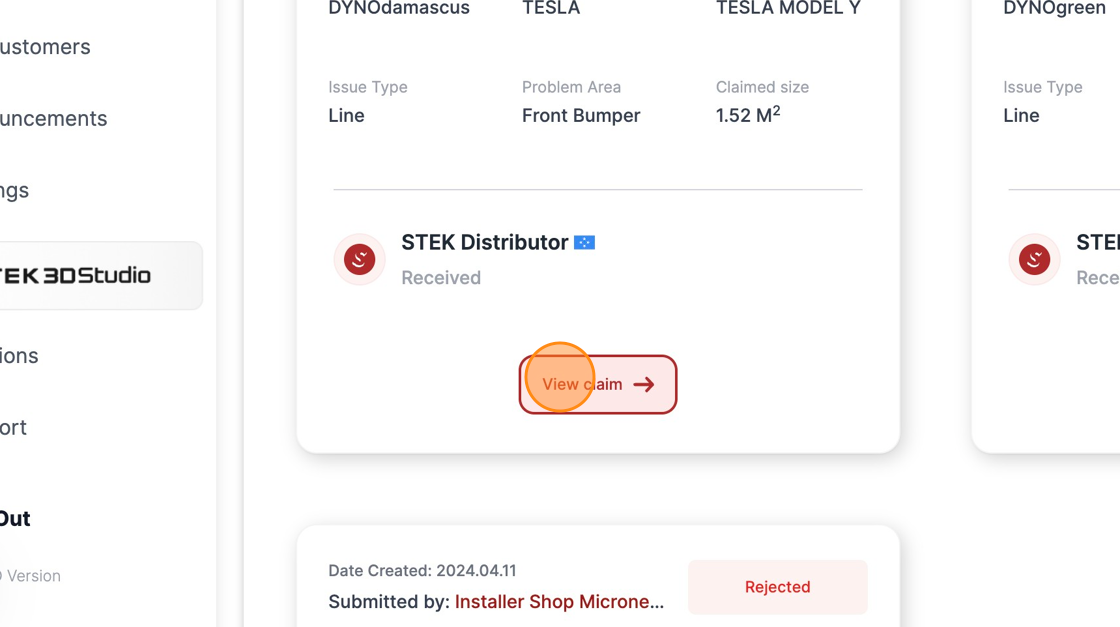
If the status is "Submitted", no further actions are required.

Was this article helpful?
That’s Great!
Thank you for your feedback
Sorry! We couldn't be helpful
Thank you for your feedback
Feedback sent
We appreciate your effort and will try to fix the article