
5.3. Installer: Submitting additional information to a Claim
This guide provides step-by-step instructions on how to submit additional information to a claim as an installer. It explains how to check the status of a claim, add missing information, and view the history of actions taken. It is a useful resource for installers who need to provide more details to their local distributor and want to track the progress of their claim.
On the left side bar menu. Click "View My Claims"

Click the button "View claim".

If the status is "Submitted", no further actions are required.
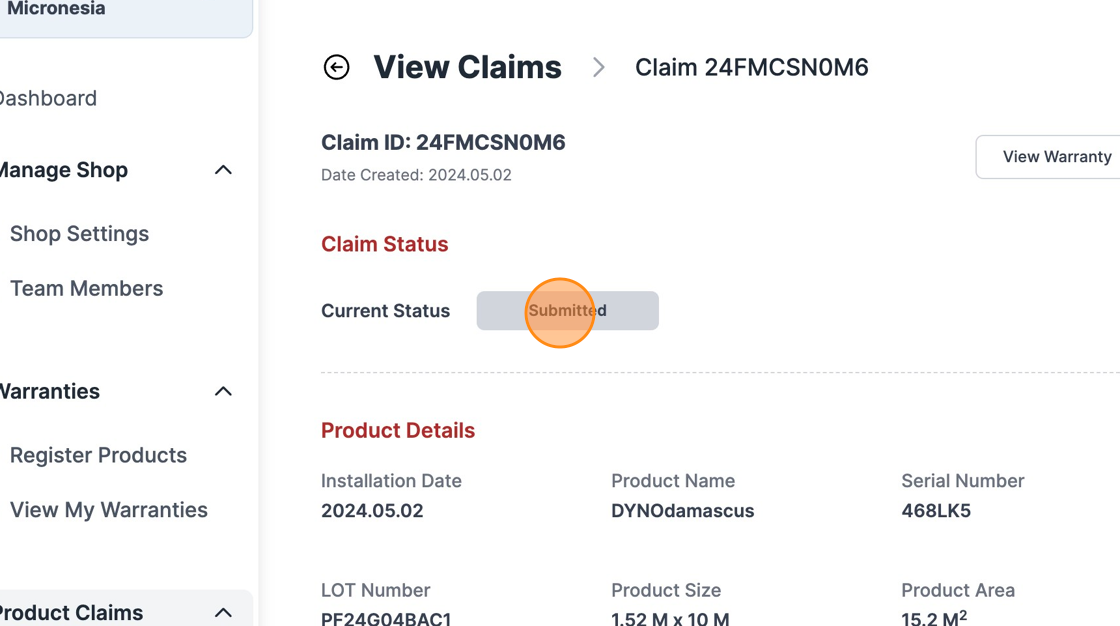
If the status is "Missing Information", check what actions your local distributor has requested your installer shop to complete.

In this example, the local distributor has "Requested Missing Information"

Click "Edit" to add more information to the claim.

For this example, we are requested to add more photos. Make sure you go to the
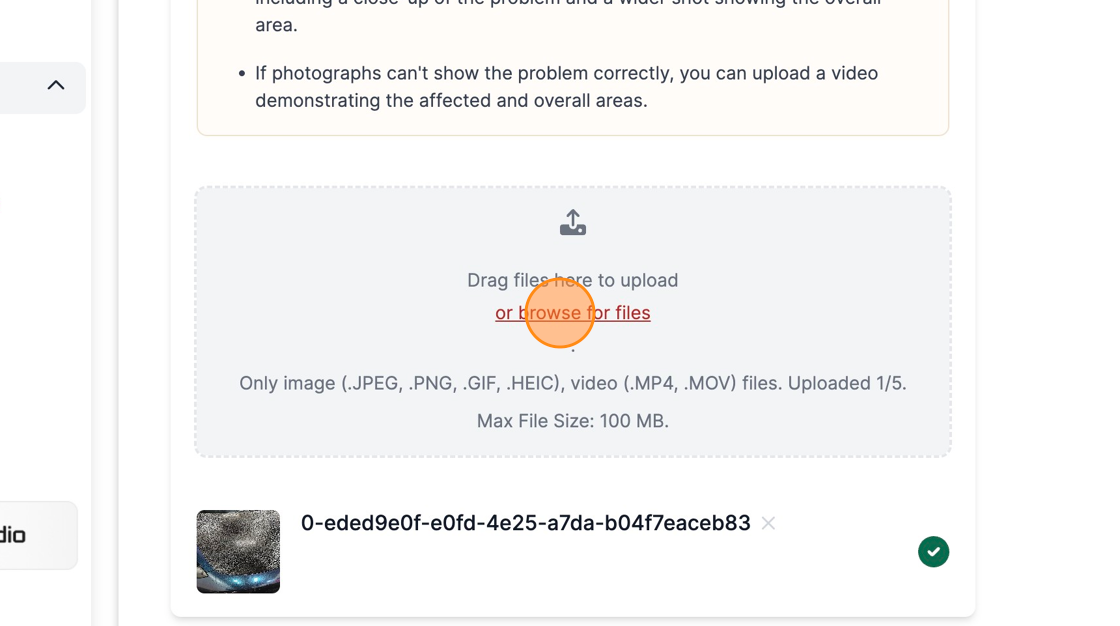
Click "Save changes" to submit the new information.

As you go back to STEKshield "View My Claims" page. Click "View claim" to check the status of the desired claim.

As you can see, you added a new photo to the claim report.

If your Distributor has checked the new information. The new status should be "Under Review".

To check the history of previous actions taken with the selected claim. Click "Logs".

As you can see, the local distributor has left a comment: "We are analyzing your claim internally".
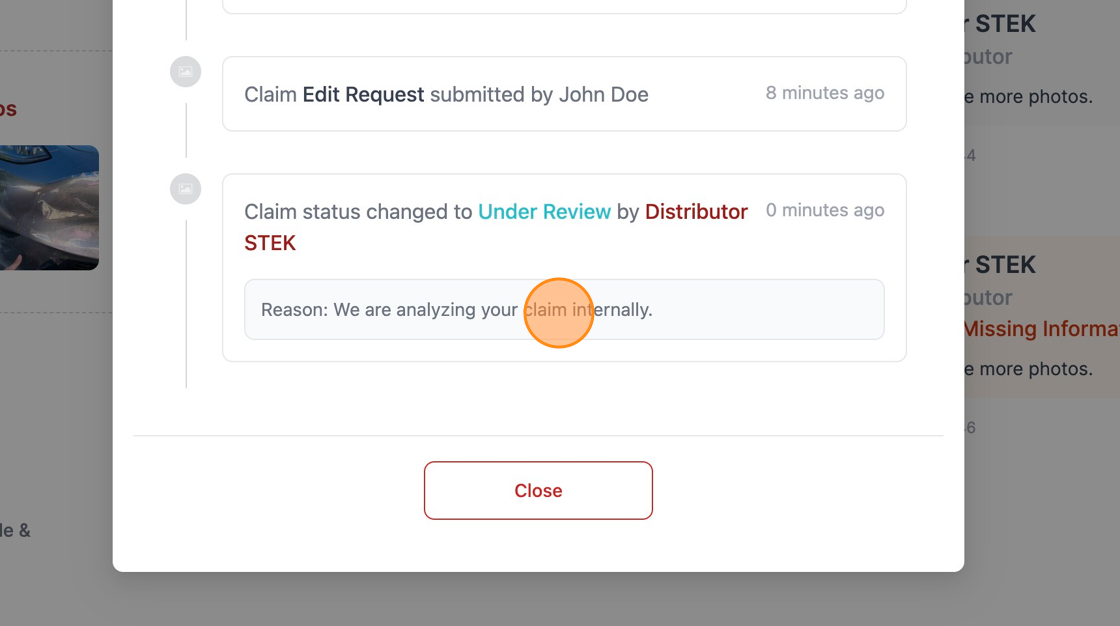
Upon reviewing your claim request, the local distributor will decide wether it should be accepted or not and will provide your shop with more information on how to proceed.

Was this article helpful?
That’s Great!
Thank you for your feedback
Sorry! We couldn't be helpful
Thank you for your feedback
Feedback sent
We appreciate your effort and will try to fix the article